
BitLocker is a built-in volume encryption feature in Microsoft Windows that protects sensitive data by encrypting entire disk drives. It is an essential tool for safeguarding your users’ information against unauthorized access—especially in cases where devices are lost or stolen.
However, one of the biggest challenges with BitLocker is managing recovery keys. If a device enters recovery mode and the user or administrator cannot locate the recovery key, access to the system—and the data on it—may be permanently lost.
Storing BitLocker recovery keys in Active Directory (AD) solves this problem. When configured properly, recovery keys are automatically backed up to the computer object in AD, eliminating the need to manually track or manage them.
In this article, I will walk you through how to configure Active Directory and Group Policy to automatically store BitLocker recovery information.
1. Add the BitLocker Drive Encryption Feature
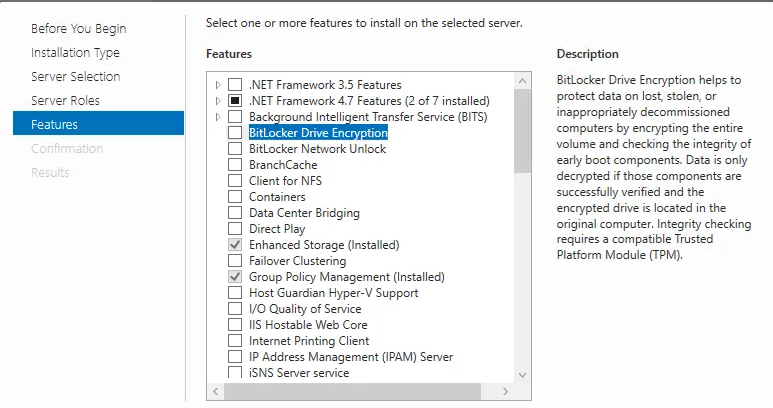
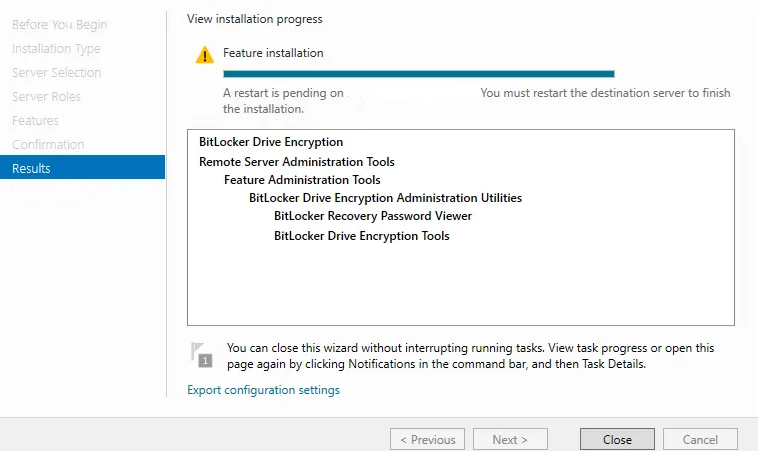
To view and manage BitLocker recovery keys from the computer object in AD, you must install the BitLocker Drive Encryption feature on your domain controller.
Steps:
- Open Server Manager
- Click Manage > Add Roles and Features
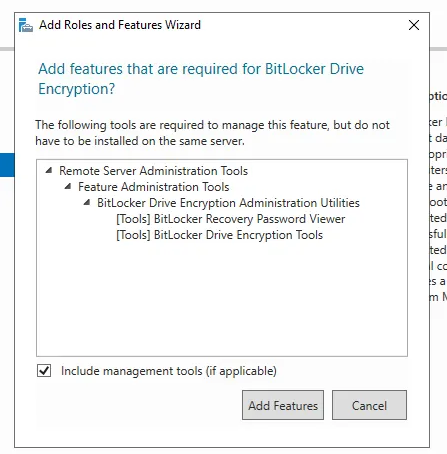
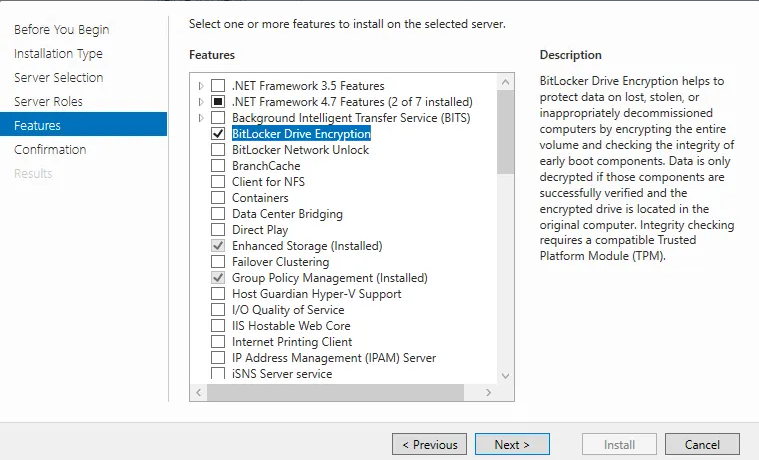
- In the Features section, select BitLocker Drive Encryption
- Complete the wizard and restart the server when prompted
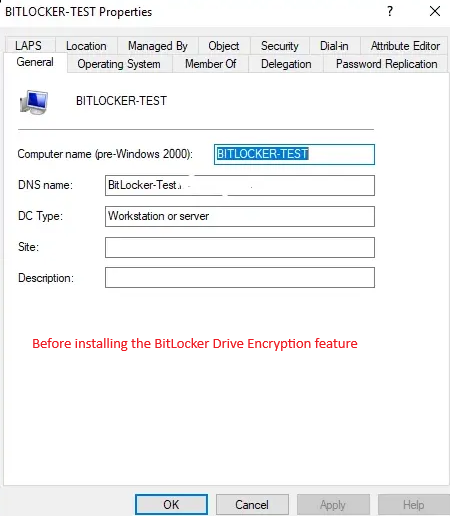
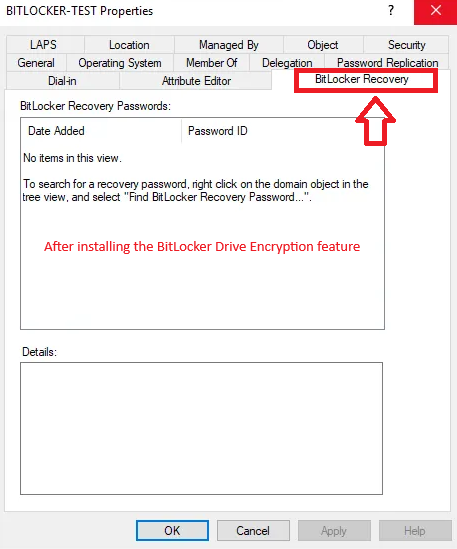
After installation, AD will display a BitLocker Recovery tab inside each computer object where the recovery keys will be stored.
2. Create and Configure the Group Policy Object (GPO)
Next, you need to configure Group Policy so that Windows automatically backs up BitLocker recovery keys to AD.
- Open Group Policy Management
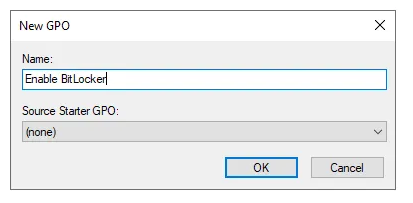
- Create a new GPO and link it to the appropriate OU
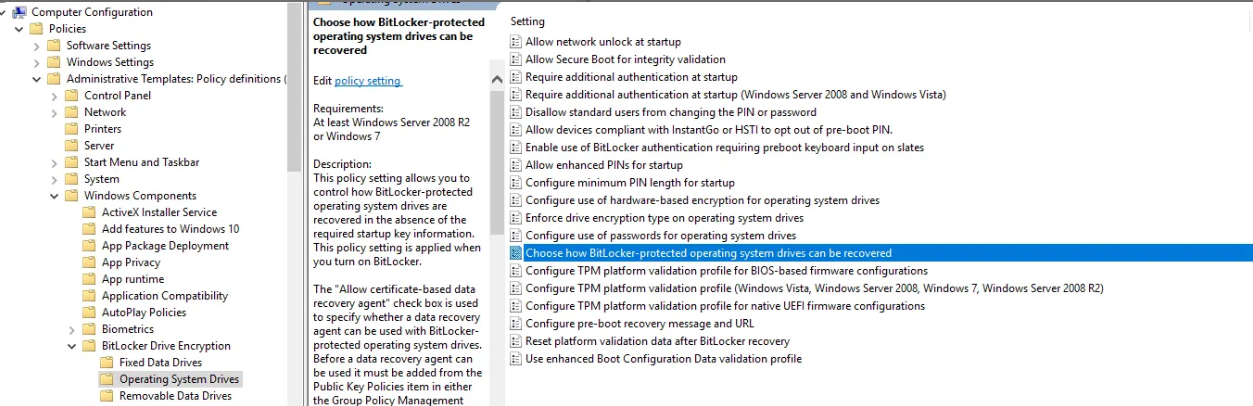
- Edit the GPO, then navigate to:
Computer Configuration
    > Policies
        > Administrative Templates
            > Windows Components
                > BitLocker Drive Encryption
Since this article focuses on protecting operating system drives, proceed with the following:
- Go to:
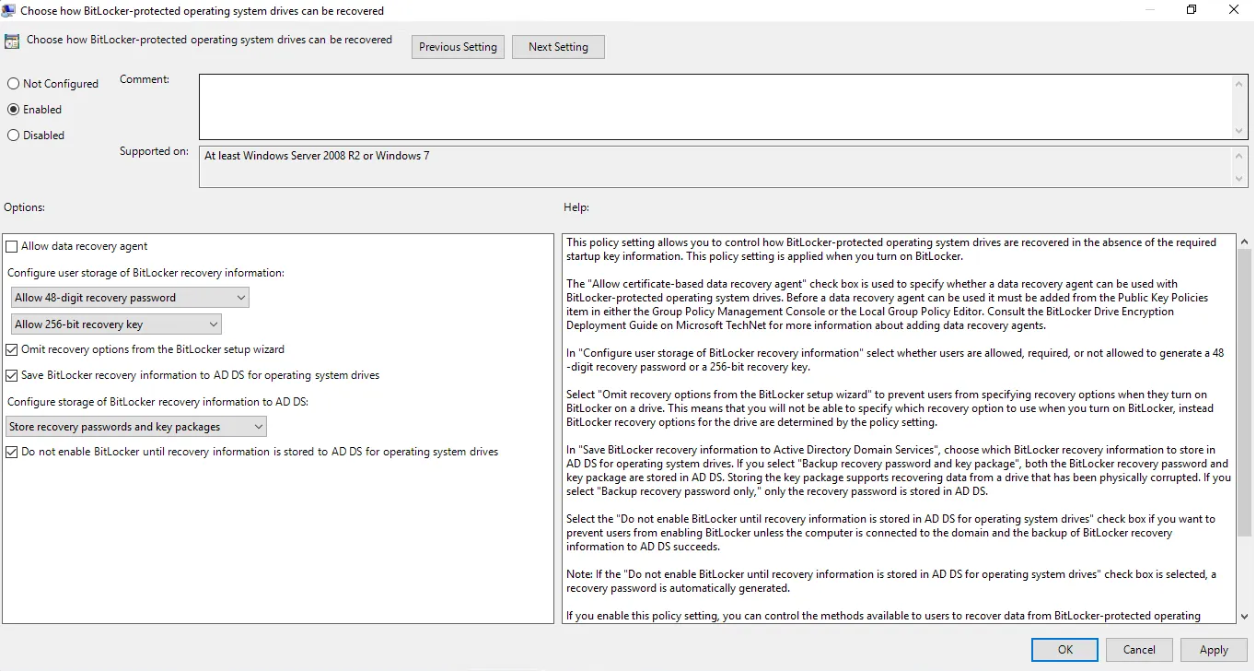
Operating System Drives > Choose how BitLocker-protected operating system drives can be recovered - Set the policy to Enabled, then configure the following options:
- ✔ Keep default settings under User storage of BitLocker recovery information
- ✔ Omit recovery options from the BitLocker setup wizard
- ✔ Save BitLocker recovery information to AD DS for operating system drives
- ✔ Under Configure storage of BitLocker recovery information to AD DS:
Select Store recovery passwords and key packages - ✔ Enable Do not enable BitLocker until recovery information is stored in AD DS for operating system drives
This ensures that BitLocker will not start encrypting unless the recovery key is successfully backed up to AD.
3. Enable BitLocker on the Client Computer
Once the GPO is applied to the target machine:
- On the client device, run:
gpupdate /force

- Enable BitLocker on the system drive
- After encryption begins, go to the device’s computer object in Active Directory
→ Right-click the object
→ Properties
→ BitLocker Recovery tab
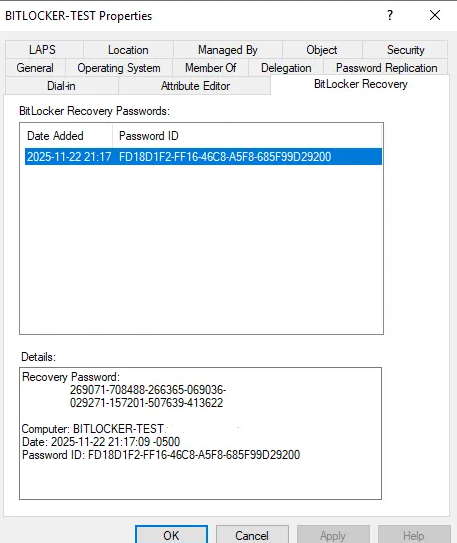
You should now see the recovery key stored in AD.
To confirm that the stored key matches the one on the device, run this command on the client:
manage-bde -protectors -get C: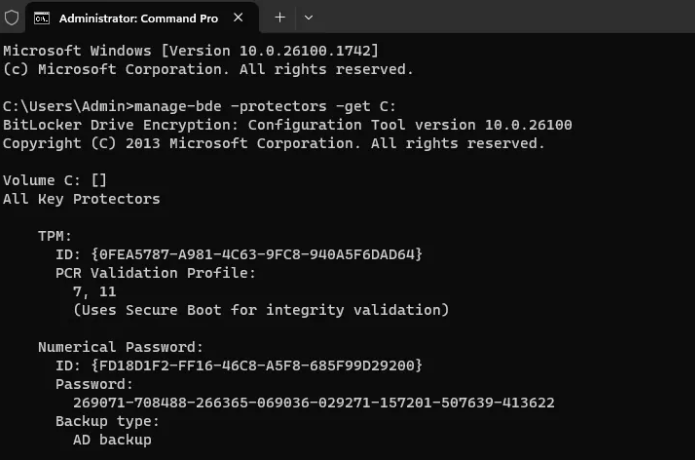
With this setup complete, all BitLocker recovery keys will be securely and automatically stored in Active Directory—making key management easier, safer, and aligned with best practices.
If you have any questions or need help implementing this in your environment, feel free to reach out!
